Is your computer acting stuck every now and then?
This means your screen, cursor, or program suddenly stops moving. You might still hear sounds, but nothing responds when you click. It’s frustrating, especially when you are working or watching something.
There are many reasons this can happen — a problem with software, too many programs running at once, or even issues with updates or memory. In this guide you will learn real fixes that work — in simple, step-by-step language.
Step-by-Step Fixes (Clear & Practical)
1. Close Frozen Programs
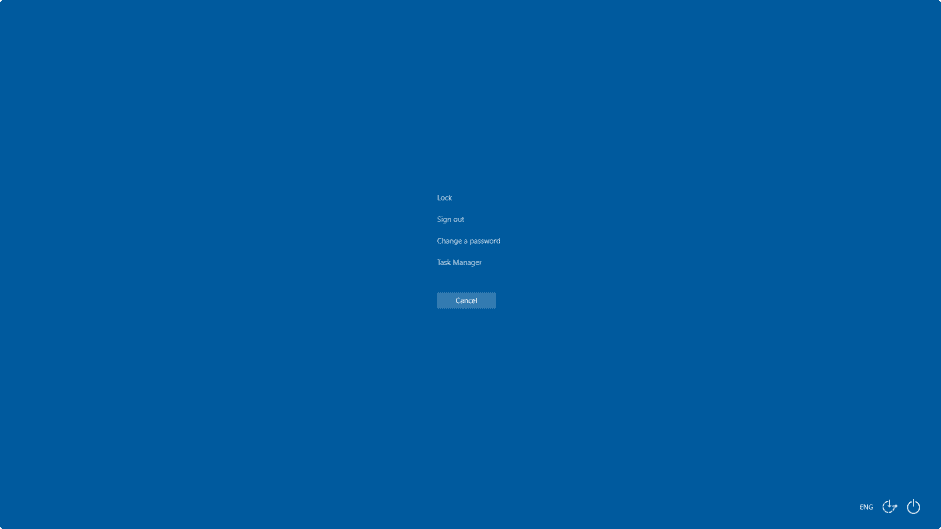
What to do: Press Ctrl + Alt + Delete → click Task Manager.
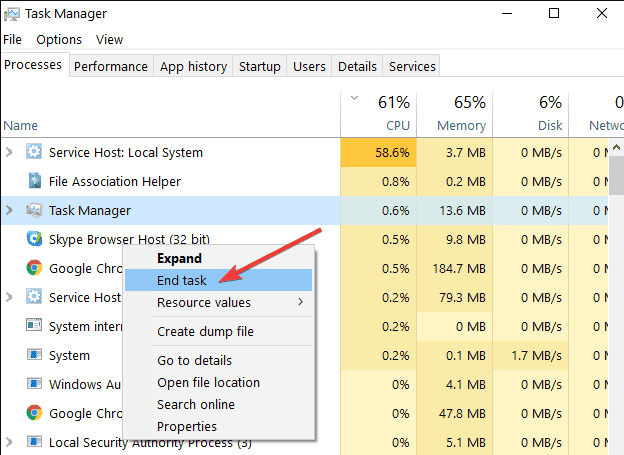
Find the program that isn’t responding → click it → select End Task.
Where to click: Bottom right of Task Manager.
What will happen: The frozen app will close.
Why this works: Some programs crash and cause the freezing.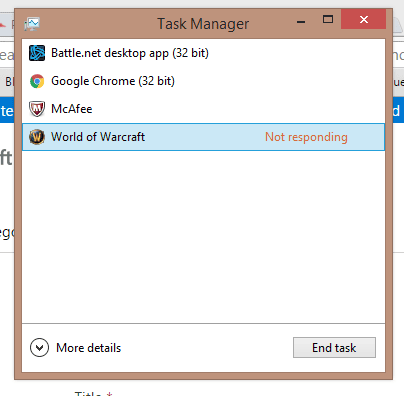
2. Restart Your Computer
What to do: Click Start → Power → Restart.
Where to click: Bottom left corner.
What will happen: Your computer will shut down and start again.
Why this works: Restart clears temporary problems and refreshes the system.
3. Check for Windows Updates
What to do: Click Start → Settings → Update & Security → Windows Update → Check for updates.
Where to click: Settings icon → bottom left.
What will happen: Your system will download and install updates.
Why this works: Updates often contain fixes for freezing and performance issues.
4. Check Disk Space
What to do: Open File Explorer → This PC. Look at the C: drive.
If it’s almost full (less than 10% free), delete some files or move them to an external drive.
Where to click: Left-side file menu → This PC.
What will happen: You will see storage usage.
Why this works: When storage is full, Windows struggles and freezes.
5. Run Antivirus Scan
What to do: Open your antivirus program → click Full Scan.
Where to click: On the antivirus dashboard.
What will happen: The scan will check your computer for malware.
Why this works: Malware can make your PC unstable and freeze.
6. Update Device Drivers
What to do: Search Device Manager in Start → open it → expand Display adapters or System devices → right-click → Update driver.
Where to click: On the device category.
What will happen: Windows will try to download the best driver.
Why this works: Old graphics or system drivers can cause freezes.
7. Check for Overheating
What to do: Put your hand near laptop vents. If very hot, close heavy apps and let it cool.
Where to notice: Sides or back vents.
What will happen: Your computer may slow itself down to protect internal parts.
Why this works: Computers freeze when they overheat.
Common Mistakes to Avoid
• Closing programs without saving work – always save before closing.
• Installing random software to “fix everything” – this can make it worse.
• Ignoring updates for a long time – problems pile up.
• Pressing random buttons when it freezes – this can cause new errors.
Prevention Tips
• Update Windows regularly.
• Keep at least 15% free space on your hard drive.
• Use an antivirus scan once a week.
• Don’t run too many programs at once.
• Shut down at least once a day.