Laptop Not Turning On? Don’t Panic
You press the power button… and nothing happens.
No lights. No sound. Just a black screen.
This is one of the most common problems laptop users face. It can happen to students, office workers, business owners — anyone.
A laptop may not turn on because of:
A dead battery
A faulty charger
Overheating
Power system errors
Screen problems
The good news? In many cases, you can fix this yourself in a few simple steps.
Follow this guide carefully. Do each step in order.
Step-by-Step Solutions
Step 1: Check the Power Source
What to do:
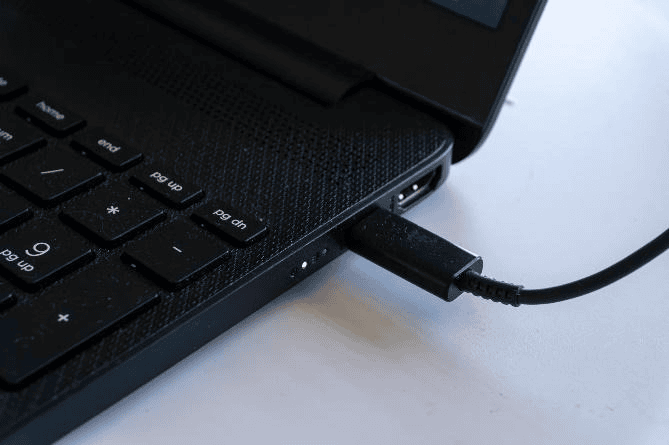
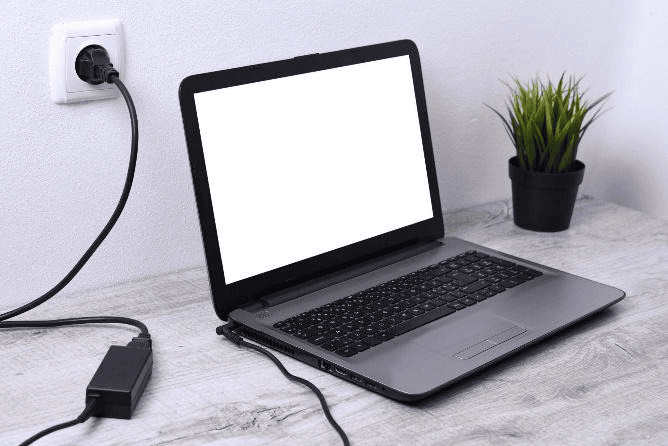
Plug your charger into a different wall outlet.
Make sure the charger is firmly connected to the laptop.
Look for a charging light on the laptop.
Check the charger cable for cuts or damage.
Where to check:
Wall socket
Power adapter (the brick)
Charging port on laptop
What will happen:
If the charging light turns on, your laptop is getting power.
Why this works:
Sometimes the outlet or charger stops working. The laptop battery may be completely drained.
Step 2: Perform a Hard Reset (Power Drain)
This method works for most brands like HP, Dell, Lenovo, and Acer.
What to do:
Turn off the laptop.
Remove the charger.
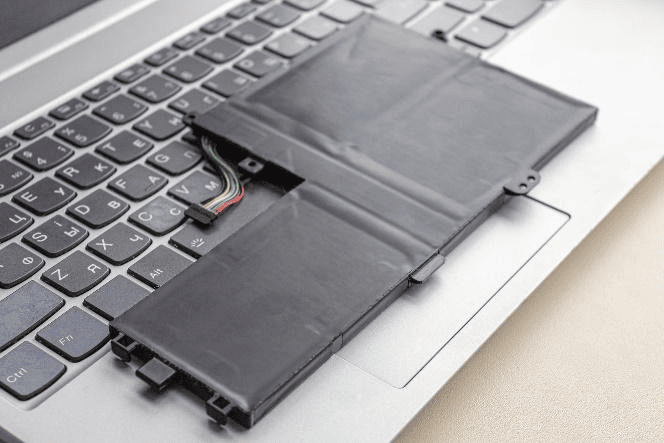
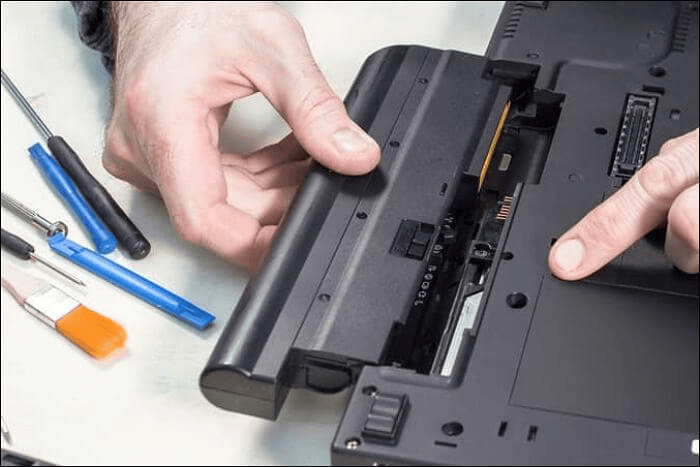
If the battery is removable, remove it.
Press and hold the power button for 30 seconds.
Plug the charger back in (do not insert battery yet).
Press the power button again.
What will happen:
The laptop may turn on normally.
Why this works:
This removes leftover electricity stuck in the motherboard. That leftover charge can block startup.
Step 3: Check If the Screen Is the Problem

What to do:
Look closely at the screen in bright light.
Press the brightness increase keys (usually Fn + sun icon).
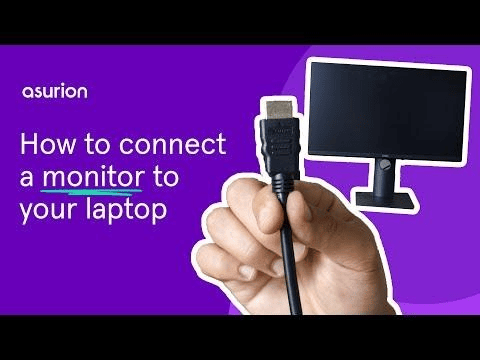
Connect your laptop to a TV or monitor using an HDMI cable.
Where to click:
No clicking needed. Use keyboard brightness keys.
What will happen:
If display shows on TV, your laptop screen may be faulty.
If nothing shows anywhere, it may be a deeper issue.
Why this works:
Sometimes the laptop is actually ON, but the screen is not working.
Step 4: Remove All External Devices
What to do:
Unplug USB drives.
Remove external mouse and keyboard.
Remove SD cards.
Disconnect printer or external hard drive.
What will happen:
Laptop may boot normally.
Why this works:
Sometimes the laptop tries to start from a USB device and gets stuck.
Step 5: Listen for Sounds or Blinking Lights
What to do:
Press the power button.
Listen for fan noise.
Watch for blinking lights on the keyboard or power button.
What will happen:
Blinking patterns may indicate hardware errors.
Why this works:
Many laptops show error codes using blinking lights.
Step 6: Let It Cool Down (If Overheated)
What to do:
Touch the bottom of the laptop.
If very hot, turn it off.
Let it cool for 30 minutes.
Try turning it on again.
What will happen:
Laptop may power on normally after cooling.
Why this works:
Overheating triggers automatic shutdown to protect internal parts.
Common Mistakes to Avoid
Pressing the power button repeatedly
Using the wrong charger
Opening the laptop without experience
Ignoring burning smell
Hitting or shaking the laptop
These actions can cause serious damage.
How to Prevent This Problem in the Future
Keep air vents clean
Avoid using laptop on bed or pillow
Use original charger
Don’t let battery drop to 0% often
Shut down properly
Keep system updated
When to Contact Ready Tech Help
No lights turn on at all
Laptop turns on then shuts off
You smell something burning
You hear clicking sounds
You are worried about losing data
Ready Tech Help provides one-on-one guided tech support to safely diagnose the issue with you step by step.
Instead of guessing and risking more damage, a trained technician can guide you remotely and help you fix the issue safely.
It’s especially helpful if:
You are not comfortable handling hardware
The laptop has important files
You want expert help without visiting a repair shop