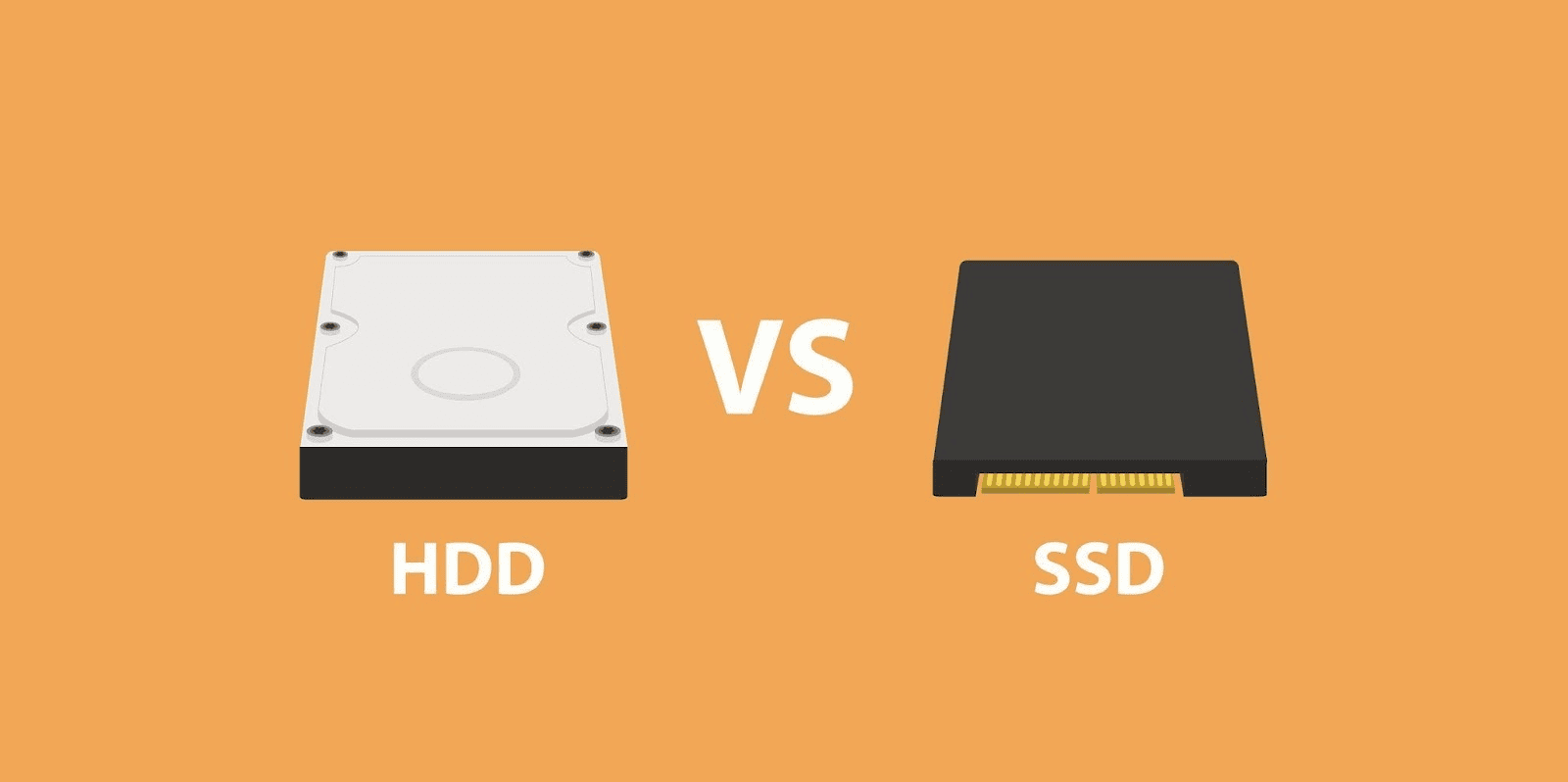
Why Is My Laptop So Slow? Real Fixes That Actually Work.

08.03.26 11:45 PM

Why Is My Laptop So Slow?

What’s Really Causing the Slowdown

If your laptop takes forever to start, freezes when opening apps, or feels slow even when browsing the internet, something is using more system power than it should.

In most cases, your laptop is not broken. It’s overloaded.

The most common reasons are:

  • Too many startup programs

  • Low storage space

  • Background apps using memory

  • Missing Windows updates

  • Malware

  • An old mechanical hard drive (HDD)

The good news is that most slow laptops can be fixed with a few safe steps. Below are the exact actions I recommend when helping clients with this issue.


Step-by-Step: How to Fix a Slow Laptop

Step 1: Restart Your Laptop Properly

What to do:
Restart your laptop fully. Do not just close the lid.

Where to click:
Start → Power → Restart

What will happen:
Windows clears temporary memory and shuts down background processes.

Why this works:
Many programs keep running in the background. Restarting resets system memory and improves performance immediately.


Step 2: Disable Unnecessary Startup Programs

If your laptop is slow right after turning it on, this is often the reason.

What to do:
Turn off programs that launch at startup.

Where to click (Windows 10/11):

  1. Right-click Start

  2. Click Task Manager

  3. Click the Startup tab

  4. Look at programs marked “Enabled”

  5. Right-click ones you don’t need

  6. Click Disable

Do not disable your antivirus.

What will happen:
Fewer programs will run when your laptop starts.

Why this works:
Startup apps use memory and processor power. Reducing them makes your system boot faster and run smoother.


Step 3: Check Disk Usage

High disk usage can slow everything down.

What to do:
Check if your disk is running near 100%.

Where to click:

  1. Right-click Start

  2. Click Task Manager

  3. Click Performance

  4. Click Disk

If it stays close to 100%, your drive is the bottleneck.

What will happen:
You’ll see whether storage is causing the slowdown.

Why this works:
When the disk is overloaded, programs cannot load properly.


Step 4: Free Up Storage Space

A nearly full drive makes Windows slow.

What to do:
Remove temporary and unnecessary files.

Where to click:
Start → Type “Disk Cleanup” → Open it
Select C: drive → Check temporary files → Click OK → Delete Files

What will happen:
Unneeded files will be removed safely.

Why this works:
Windows needs free space to operate efficiently.


Step 5: Uninstall Programs You Don’t Use

Unused software often runs in the background.

What to do:
Remove unnecessary applications.

Where to click:
Start → Settings → Apps → Installed Apps
Select program → Click Uninstall

What will happen:
The program and related background processes will be removed.

Why this works:
Less software running means more available memory and faster performance.


Step 6: Run a Full Virus Scan

Malware can quietly slow your system.

What to do:
Run a full security scan.

Where to click:
Start → Type “Windows Security”
Click Virus & Threat Protection
Click Scan Options → Select Full Scan → Click Scan Now

What will happen:
Windows will scan your entire system for threats.

Why this works:
Viruses and unwanted software use system resources and reduce performance.


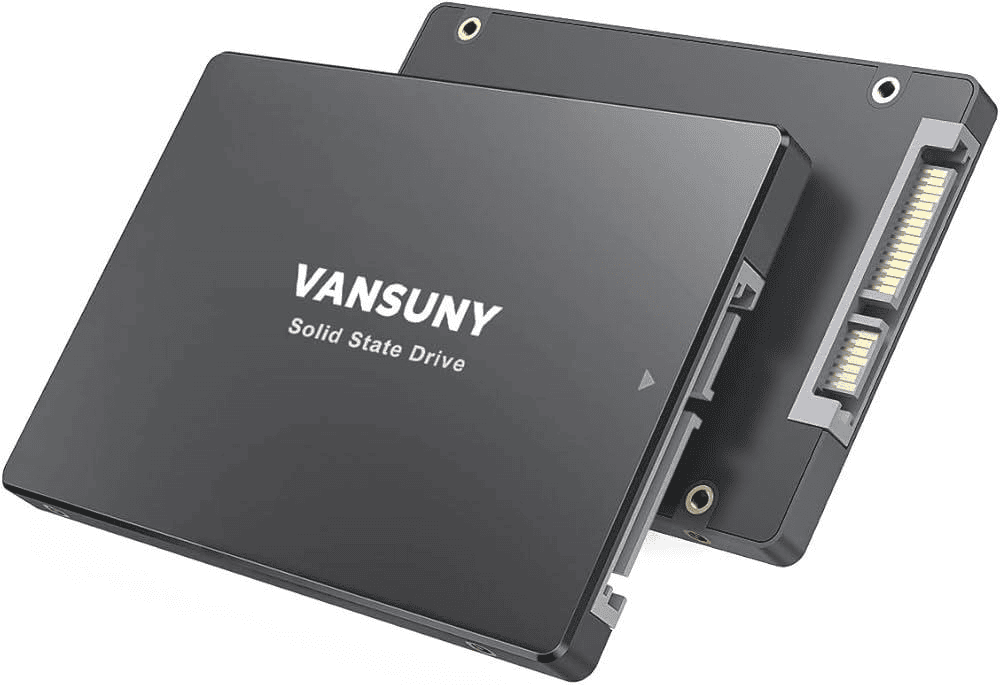
Step 7: Check If You Have an Old Hard Drive (HDD)

Older laptops often use slower mechanical hard drives.
What to do:
Right-click Start → Task Manager → Performance → Click Disk
Look at the drive type (HDD or SSD).

What will happen:
You’ll see whether your laptop uses an HDD.

Why this works:
HDD drives are much slower than SSD drives. Upgrading to an SSD can dramatically improve speed.

If you are not comfortable opening your laptop, do not attempt the upgrade yourself.


Common Mistakes to Avoid

  • Installing random “PC speed booster” programs

  • Downloading unknown cleanup software

  • Disabling your antivirus

  • Deleting system files manually

  • Ignoring warning signs like unusual noises

These actions can make the problem worse or cause data loss.


How to Prevent Your Laptop from Getting Slow Again

  • Keep at least 20% of your storage free

  • Restart your laptop weekly

  • Avoid installing unnecessary programs

  • Keep Windows updated

  • Run a virus scan monthly

  • Store large files on external drives or cloud storage

Regular maintenance keeps your system running smoothly.


When to Contact Ready Tech Help

If your laptop is still slow after trying these steps, or if you’re unsure about upgrading hardware, it may be a deeper issue like failing components or hidden malware.

Ready Tech Help provides one-on-one guided tech support to help you fix device problems safely. If you feel stuck or worried about losing data, getting professional guidance can save time and prevent costly mistakes.


Frequently Asked Questions

1. Why is my laptop slow even when nothing is open?
Background startup programs or hidden processes may still be running.

2. How much free space should I keep on my laptop?
Keep at least 20% of your main drive free.

3. Will adding more RAM make my laptop faster?
If you only have 4GB and use multiple programs, upgrading to 8GB or more can improve performance.

4. Is it worth upgrading from HDD to SSD?
Yes. This is one of the most effective upgrades for speed improvement.

5. Should I reset my laptop to fix slowness?
Only as a last option, and always back up your files first.