The face of the moon was in shadow
Do you hear the fan spinning loudly all the time?
If your CPU usage is stuck at 80% or even 100%, your computer is working too hard. This makes everything slow. It can also cause overheating.
High CPU usage usually happens because:
Too many programs are running
A background process is stuck
Windows updates are running
Malware is active
Drivers are outdated
In this guide, you will learn simple, safe steps to lower CPU usage and make your PC smooth again.
Step-by-Step Solutions
1. Check What Is Using the CPU
What to do:
Press Ctrl + Shift + Esc to open the Task Manager.
Where to click:
Click the Processes tab at the top.
Click the CPU column to sort by highest usage.
What will happen:
You will see which program is using the most CPU.
Why this works:
It helps you find the exact program causing the problem.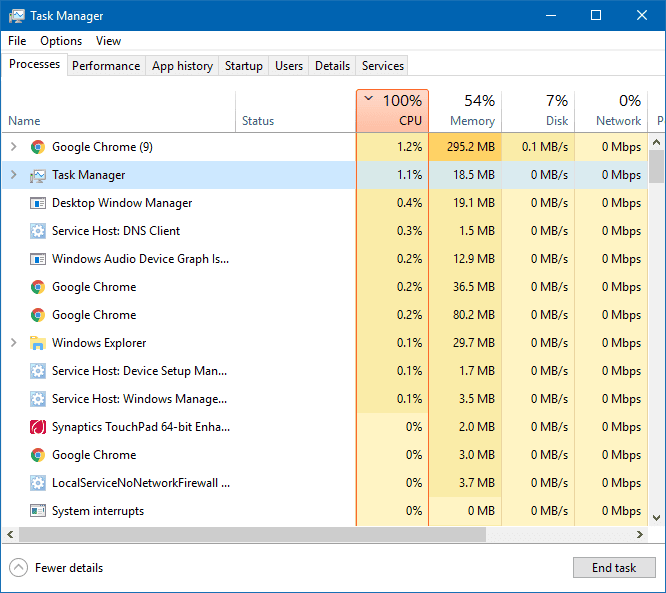
If a program you don’t need is using high CPU:
Right-click it → Click End Task.
2. Restart Your Computer
What to do:
Click Start → Power icon → Restart
Where to click:
Bottom left corner of screen.
What will happen:
Your computer will shut down and start fresh.
Why this works:
Restarting clears temporary system errors and stuck processes.
3. Disable Startup Programs
Some apps start automatically and use CPU in the background.
What to do:
Press Ctrl + Shift + Esc → Click Startup apps
Where to click:
Left side panel in Task Manager.
Right-click apps you don’t need at startup → Click Disable
What will happen:
These apps will not start when your computer turns on.
Why this works:
Fewer startup programs = lower CPU load.
4. Check for Windows Updates
Sometimes updates fix CPU problems.
What to do:
Click Start → Settings → Windows Update
Click Check for updates
What will happen:
Windows will download and install fixes if available.
Why this works:
Updates repair system bugs that cause high CPU usage.
5. Scan for Malware
Viruses often cause high CPU usage.
What to do:
Click Start → Type Windows Security → Open it
Click Virus & Threat Protection → Click Quick Scan
What will happen:
Windows will scan your PC for harmful programs.
Why this works:
Malware runs hidden in the background and consumes CPU power.
6. Update Drivers
Old drivers can cause system strain.
What to do:
Right-click Start button → Click Device Manager
Expand categories like:
Display adapters
Processors
Right-click device → Click Update driver
What will happen:
Windows searches for newer drivers.
Why this works:
Updated drivers improve performance and reduce system load.
7. Turn Off Background Apps
What to do:
Click Start → Settings → Apps → Installed Apps
Click the three dots beside an app → Click Advanced Options → Under Background apps permissions, choose Never
What will happen:
The app will stop running in the background.
Why this works:
Background apps silently use CPU even when not open.
Common Mistakes to Avoid
• Ending important system processes (like “System” or “Windows Explorer”)
• Installing random “CPU booster” software
• Ignoring updates for months
• Running too many browser tabs
• Never restarting the computer
How to Prevent High CPU Usage
• Restart your PC at least once every few days
• Keep Windows updated
• Disable apps you don’t use
• Avoid installing unknown software
• Run antivirus scans weekly
• Keep at least 20% free storage space
When to Contact Ready Tech Help
If CPU usage stays high even after trying these steps, there may be a deeper issue like corrupted system files or hidden malware.
Ready Tech Help provides one-on-one guided support to safely diagnose and fix the problem step by step. If you feel unsure or the issue keeps coming back, getting guided help can prevent bigger damage later.